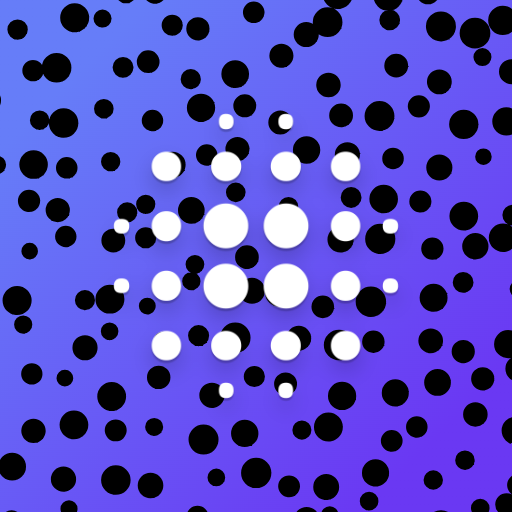
Dot spacing controls detail
Closer spacing samples more of the source and keeps small features, but it also creates more marks. Wider spacing produces a bolder poster-like texture and works best when the silhouette is already strong.
AI Dot Line Generator
Turn photos into dot art instantly, free and without signing in. Adjust the dots and download SVG or PNG, or create new dot-line artwork from a prompt with AI.
Drop a PNG, JPG or WebP here, up to 10 MB. Conversion starts automatically.
Create a new image with AI from a text description or reference photo. This mode requires an account and uses credits; photo conversion is free in the other mode.
Describe an idea or choose a scenario to begin.
These original sample illustrations were converted with the same tool and default settings shown above. Try one to explore the controls before uploading your own photo.
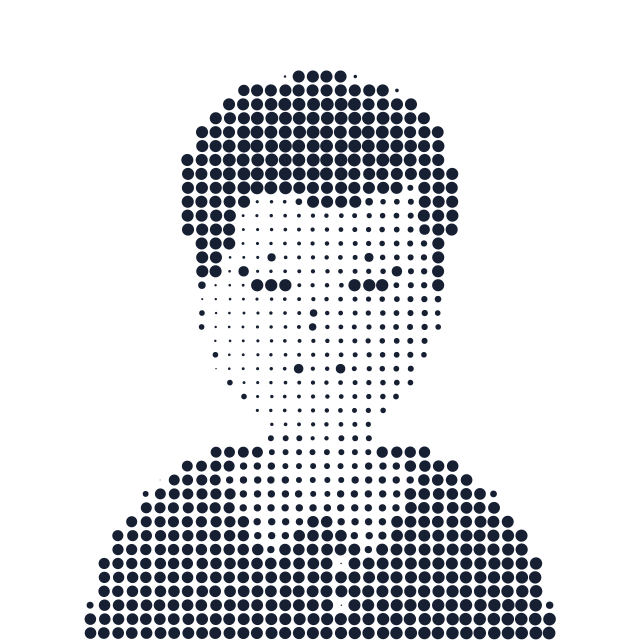
A graphic portrait becomes a stippled print. Closer dots keep facial details; larger dots deepen the shadows.
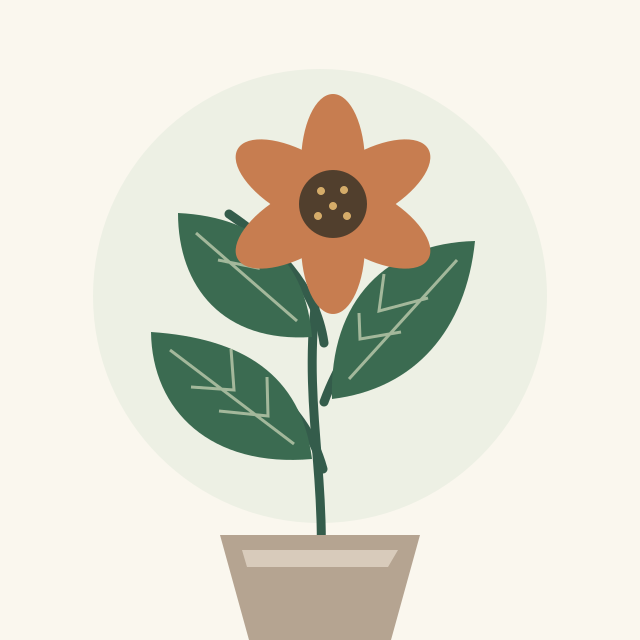
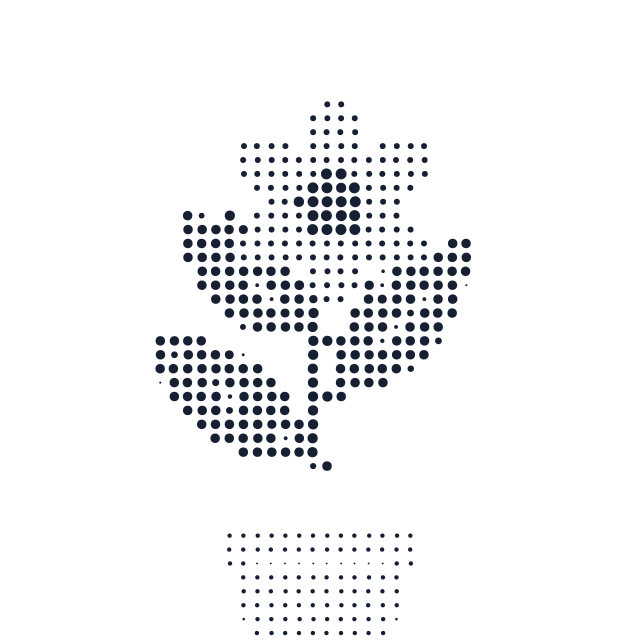
Leaves and petals become a study in dot size. Increase contrast to separate the plant from the paper.
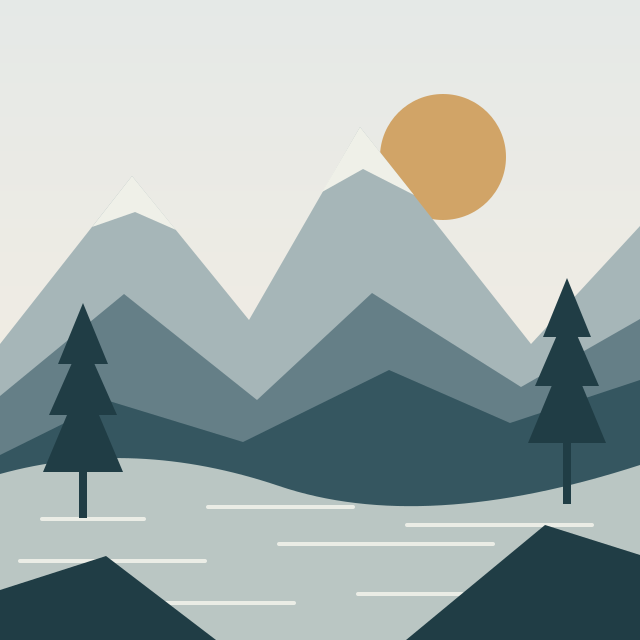
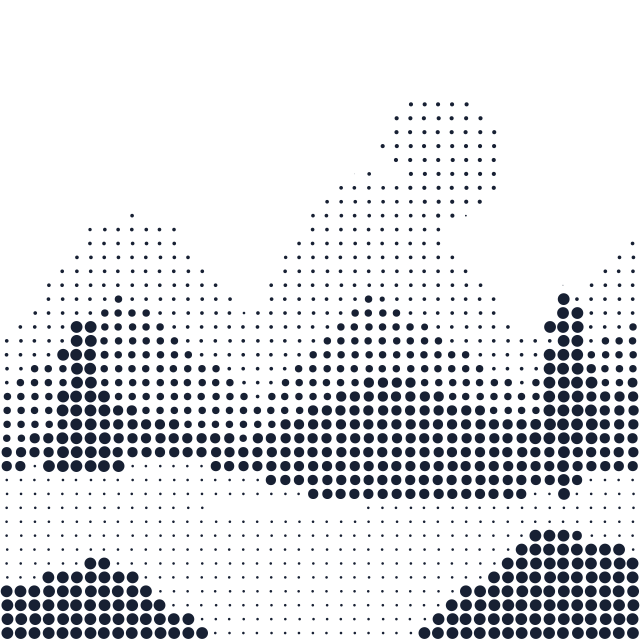
Mountains and water turn into layers of tone. Wider dot spacing gives the scene a bold poster texture.
This Dot Art Generator supports two starting points. Use the photo converter when you have an image and want a repeatable dot treatment that you can tune yourself. Use the AI prompt generator when you want the subject, composition, and dot-and-line style invented from a written description. The separate workflows provide local conversion for existing artwork and an optional generative route for a new image.
Photo conversion is free and runs entirely in your browser. Choose a PNG, JPEG, or WebP up to 10 MB; the tool validates the decoded image at a maximum of 24 million pixels and fits its longest edge within 960 pixels for predictable processing. Your photo is not uploaded to our server, and this path does not require an account or credits. The finished pattern can be downloaded as SVG for scalable dots or PNG for everyday image use.
Start with a clear source, then adjust the pattern while watching the preview. Every change stays on your device, so you can try several treatments before downloading.
Select a PNG, JPEG, or WebP with a distinct subject and readable light-dark separation. Portraits, products, animals, logos, and silhouettes usually translate more clearly than busy scenes with many small details.
Use dot spacing to control how often the image is sampled, then set dot size for the weight of each mark. Begin with moderate values so the subject remains recognizable before trying a coarser or denser pattern.
Adjust contrast to separate important shapes from the background. Pick an ink color that stays legible against the chosen paper or page color; dark ink on a light background is a dependable starting point for print.
Check faces, edges, and small gaps at the intended display size. Download SVG when you need crisp scaling or further design work, and PNG when you need a ready-to-share raster image.
Dot art balances recognition and abstraction. The best settings depend on source detail and the size at which the result will be viewed or printed.
Closer spacing samples more of the source and keeps small features, but it also creates more marks. Wider spacing produces a bolder poster-like texture and works best when the silhouette is already strong.
Larger dots make shadows heavier and can merge nearby features. Smaller dots leave more open space. If the image looks muddy, reduce dot size before increasing spacing so you can preserve useful structure.
Increase contrast when the source looks flat or the subject blends into its background. Lower it when highlights disappear or dark areas become solid masses. A source with even lighting usually needs less correction.
Black or deep navy reproduces strongly in documents and prints. Colored ink can match a brand or illustration, but check that it remains distinct from the background at small sizes.
No. The photo-to-dot converter runs locally in your browser without an account or credits. Sign-in is required only for the separate AI prompt generation workflow.
No. In the photo converter, image decoding and dot rendering happen on your device. The selected photo is not uploaded to our server.
The local converter accepts PNG, JPEG, and WebP files up to 10 MB. It also rejects images whose decoded dimensions exceed 24 million pixels, then limits the longest edge to 960 pixels for processing.
Choose SVG for a scalable dot composition that stays crisp when enlarged or placed in design software. Choose PNG for presentations, messages, social posts, and other workflows that expect a standard raster image.
Dot conversion samples the source at intervals, so very small features can disappear. Try closer dot spacing, a smaller dot size, or a cleaner crop with stronger separation between the subject and background.
Use a high-contrast source, choose dark ink on a light background, and inspect the pattern at its intended print size. SVG is useful when you need to resize the artwork without softening the dots.
Photo conversion rearranges the tones of your existing image into a deterministic dot pattern using local controls. AI generation creates a new image from a written prompt, requires sign-in, and uses account credits.
No. Local photo conversion and SVG or PNG download do not use credits. Credits apply only when you choose the signed-in AI prompt generator.